How to Add a New Command
- Linda Jun
- djc
- Steven Hughes
Introduction
A Command represents a member of the set of instruction(s) that perform a task in GMAT. Each Command is associated with one or more Resources and describes how the associated Resources will be used and evolve over time. Commands are sequential and they run in scripted order. That scripted list of commands is called the Mission Control Sequence. Commands in GMAT are created in order, via script or GUI, to run a mission.
The following text shows sample scripting for a mission sequence:
BeginMissionSequence;
Propagate 'Prop To Periapsis' DefaultProp(DefaultSC) {DefaultSC.Earth.Periapsis};
Target 'Hohmann Transfer' DC1 {SolveMode = Solve, ExitMode = SaveAndContinue};
   Vary 'Vary TOI' DC1(TOI.Element1 = 1, {Perturbation = 0.0001, Lower = 0.0, Upper = 3.14159, MaxStep = 0.5});
   Maneuver 'Perform TOI' TOI(DefaultSC);
   Propagate 'Prop To Apoapsis' DefaultProp(DefaultSC) {DefaultSC.Earth.Apoapsis};
   Achieve 'Achieve RMAG = 42165' DC1(DefaultSC.Earth.RMAG = 42164.169, {Tolerance = 0.1});
   Vary 'Vary GOI' DC1(GOI.Element1 = 1, {Perturbation = 0.0001, Lower = 0.0, Upper = 3.14159, MaxStep = 0.2});
   Maneuver 'Perform GOI' GOI(DefaultSC);
   Achieve 'Achieve ECC = 0.005' DC1(DefaultSC.Earth.ECC = 0.005, {Tolerance = 0.0001});
EndTarget;  % For targeter DC1
Propagate 'Prop One Day' DefaultProp(DefaultSC) {DefaultSC.ElapsedSecs = 86400};
The following snapshot shows the mission sequence of this scripting as it is presented in GMAT's GUI.
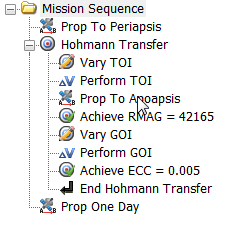
There are many types of built-in Commands used in spacecraft missions. New Commands can be created to extend GMAT to perform a new task. This document will describe a general procedure to add a new Command to the baseline GMAT code. If you would prefer to add your new Command as a plugin, please see instead the document "Building a GMAT Plug-in: A Walkthrough Using Visual Studio 2010."
Overview
All configurable Command types must be derived from GmatCommand. The GmatCommand class is derived from the base GMAT class, GmatBase. Often there are intermediate classes that encapsulate common data and methods for the Command type. For example, there is a PlotCommand class, derived from GmatCommand, from which ClearPlot, MarkPoint, PenDown, and PenUp Commands are derived. Data and method implementations that are common to all of these subclasses are placed in the PlotCommand class, and only those that need specific modifications are added or overridden in the subclasses. Only leaf Commands can be created and used in the GMAT mission sequence.
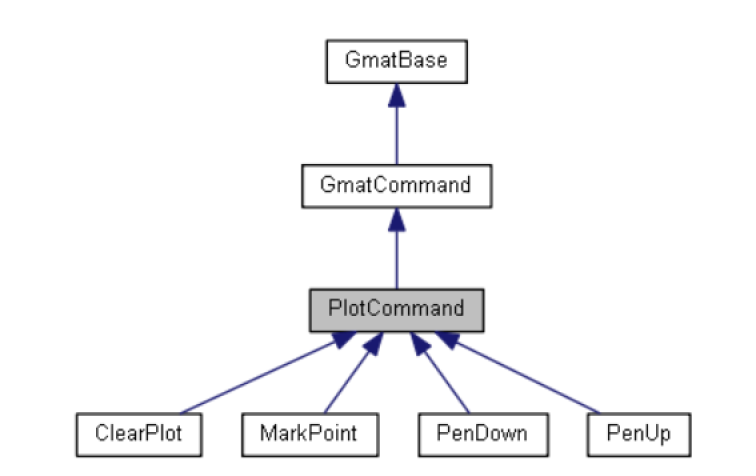
Most Commands have one or more associated Resources and options. Though not shown in the above diagram, the associated Resource type of the PlotCommand is the Subscriber/XYPlot, and there are no command options. Sample script syntax of one of the PlotCommand leaf classes is
ClearPlot DefaultXYPlot;
A more complicated command is the Propagate command, shown below.
Propagate DefaultProp(DefaultSC) {DefaultSC.ElapsedSecs = 12000.0};
The associated Resource type for this command is a Propagator type named "DefaultProp" and a Spacecraft type named "DefaultSC." The command option in this example is "DefaultSC.ElapsedSecs = 12000.0." This script tells the Propagate command to propagate the Spacecraft object "DefaultSC" for 12000 seconds using the Propagator object "DefaultProp."
A maneuver command example is shown below.
Maneuver DefaultIB(DefaultSC);
The associated Resource type is an object of the ImpulsiveBurn type named "DefaultIB" and a Spacecraft type named "DefaultSC." This script snippet tells the Maneuver Command to apply a maneuver to the Spacecraft object "DefaultSC" using the ImpulsiveBurn object "DefaultIB."
Commands in GMAT are executed in order, whether created via script or GUI, when running a mission. When a Command is created via the GUI, it is set to use its default Resource(s) and option(s). When a Command is created via script, the associated Resource must be created before the Commands are created, otherwise errors will occur during script parsing.
GMAT uses a late binding scheme to provide interconnection between Resource objects and Commands. Commands store names of associated Resource objects during script parsing. Actual object instances are connected before the execution of Commands when the Sandbox is initialized. See the "GMAT Architectural Specification" for more details on GMAT's late binding scheme.
Required First Steps
In order to add a new Command to GMAT, some preliminary steps must be taken to set up your build environment:
- Download the configured GMAT source
- Download, or refer to, the GMAT C++ Code Style Guide from the GMAT Wiki. Code used in GMAT follows the standard GMAT coding style as defined in this guide.
- Build GMAT on your platform with no code changes (see instructions on building the source on the GMAT Wiki) [NOTE: to maintain cross-platform compatibility, code must build successfully using the GCC compiler and Visual Studio in order to be considered for inclusion in GMAT.]
- Run the Sample Missions (or SmokeTests and possibly a subset of relevant system tests, if you have access to the GMAT test system) before code modification, to
- Confirm successful execution of the unmodified GMAT, and
- Obtain an initial set of 'truth' data for later testing
Once these steps have been completed and GMAT runs successfully from this clean build, you can start the work to create a new Command.
General Requirements
Though GMAT is a modular system, adding a new Command is not as simple as just compiling and linking a new class. There are requirements that must be met regarding, among other things:
- Deriving the new class from a base class (either an existing Command class, or GmatCommand)
- Implementing, at a minimum, several specific methods
- Adding the new command to the appropriate factory (or creating a new factory)
- Updating base type lists and related enumerated types
- Modification of types and addition of methods in GUI management classes
- Optionally, creating GUI components to edit your new Command
Required Methods
Among other generic methods provided by the GmatBase class, the following list details methods that should usually be implemented for a new Command. Note that InterpretAction() and Execute() methods are specific to the Command class and must be implemented.
InterpretAction(): Parses the command string and builds the corresponding command structures. During script interpretation, this method is called to parse the string and to set Resource object names and options.GetWrapperObjectNameArray(), SetElementWrapper(), ClearWrappers(): If a Command accesses configured Parameters or other Resource properties, these methods should be implemented.RenameRefObject(): If a Command accesses one or more configured Resource, this method should be implemented.Initialize(): Initializes the internal command data. During the Sandbox initialization, this method is called to set Resource object pointers to the objects in the Sandbox.Execute(): Performs actions on associated Resource objects or just performs actions without associated Resource objects. During the Sandbox execution, this method is called to perform actions.TakeAction(): Performs an action specific to the Command. This method is usually called from other Commands.GetGeneratingString():Generates the command string as it appears in the script. This method is called when saving GUI resources and commands to a script file, or when showing scripts from the individual resource panel.
Recommended Practices
There are practices and/or strategies that may be helpful to a developer in creating a new Command. It is often helpful to:
- First, determine scripting of the new component
- Next, modify/add the minimal set of code for the new Command until the associated script parses
- Then, add validation of the input data
- Then, begin to add the functionality necessary to make the Command work (may be done in steps)
Procedures for Adding a New Command
Base Code modifications:
- Decide which GMAT Command base class will be the parent of your new class. Most Commands derive from the GmatCommand class located in src/base/command.
- Create the new class by making NewCommand.cpp and NewCommand.hpp files for the class, where NewCommand is the name of the command (usually identical to the command name used in GMAT scripts).
- Add additional data or methods to the new class as needed.
- Implement the pure virtual methods of the parent class, and other public methods whose base/default implementation are not correct or sufficient for your new class. The only pure virtual method required for Commands is the Execute() method, which must be implemented. In addition, you may need to add some validation to the Initialize() method, so you would override the Initialize() method and include new code there, and (almost certainly) call the parent Initialize() method as well.
- If your class is a leaf class, implement the Clone() and Copy() methods. Implement the RenameRefobjects() method to handle renaming Resource names from the GUI. If your command does not reference any objects, add the macro "DEFAULT_TO_NO_REFOBJECTS" in the public part of your header file. This macro is replaced by a RenameRefobjects() implementation, set to return true, during compilation.
- If your class has cloned objects, implement the cloning of objects in the copy constructor and the assignment operator as needed. The assignment operator should delete owned cloned objects before creating new owned cloned objects. If your class does not own any cloned objects, add the macro "DEFAULT_TO_NO_CLONES" in the public part of your header file. This macro is replaced by an implementation of HasLocalClones() that returns false.
- Update /src/base/factory/CommandFactory.cpp to add your new Command type. Add a new Command type to the data member "creatables" list in the CommandFactory constructor so that the new Command type is recognized in the Interpreter. Update the CreateCommand() method to return an instance of your new Command type when a new Command instance with the new type name is requested.
- Add your new class(es) to the /src/base/MakeBase.eclipse file to make sure it is compiled using GCC.
- Add new Command class to Microsoft Visual C++ 2010 Express libGmatBase project to build the new command into GMAT builds created using Visual Studio.
GUI Code modifications:
- If you want to show a customized icon for the new Command from the Mission tree:
- insert your new Command type in the MissionIconType enumeration in /src/gui/app/GmatTreeItemData.hpp. The new Command type must to be inserted between the MISSION_ICON_OPENFOLDER and MISSION_ICON_DEFAULT entries.
- Add a statement to load the new Command icon file at the same ordered position as the location that the new Type was inserted to MissionIconType by adding the line to the MissionTree::AddIcons() method in /src/gui/mission/MissionTree.cpp. Pay careful attention to the ordering here, because the bitmap indices must match the ordering in the MissionIconType enumeration.
- If you want provide a specialized handler for the new Command type -- for example, by creating a new popup menu -- add your new type to the ItemType enumeration in /src/gui/app/GmatTreeItemData.hpp and implement the corresponding code in MissionTree.cpp.
- Check CreateNewCommand() in /src/gui/app/GmatMainFrame.cpp to see if you need to add or modify the list (i.e. look at the list in the switch statement) to match your modifications to the GmatTreeItemData code.
- Decide whether you can use the GmatCommandPanel (a generic panel for GMAT Commands) or if you will need a custom GUI panel for your new Command. See "How to Create GMAT panels" for further instructions on creating a new GUI panel.
- Add your new class(es) to the /src/gui/MakeGui.eclipse file to make sure it is compiled using GCC.
- Add your new Command class(es) to Microsoft Visual C++ 2010 Express GMAT_wxGui project to build the new GUI elements into GMAT builds created using Visual Studio.
System Test Readiness Criteria
Once you have completed your code modifications and additions, there are several criteria that must be met before the GMAT team will allow the code to be included into the GMAT base code. Note that meeting these criteria does not guarantee that your commands will be added to GMAT.
- Update your code base with the latest configured GMAT code, merging the configured code into your code base when necessary.
- Build with the GCC compiler to make sure that the code builds on non-Windows platforms, and build with Visual Studio C++ to ensure that the code builds for Windows.
Then, for those with code modification and system test privileges:
- Run SmokeTests and the applicable Command and/or command system test folder(s) successfully
- Inform testers of changes to GUI components, when applicable
For contributors without code modification and system test privileges:
- Run unit-tests with the new code – these unit-tests must be thorough and should use input test data obtained from GMAT engineers when available
- Coordinate with GMAT team members to deliver code modifications
Step-By-Step Tutorial
This section shows an example how to create a new Command. The actual code for the command we are going to create is in Appendix B.
- Come up with Command syntax and actions. For this example, we are going to add a new Display command. The Display command will display GMAT Parameters (Calculated Parameters, Array, Variable, and String) in the Message Window. The script syntax will be: "Display ParameterName" where ParameterName is a configured Parameter object name.
- There are a couple of ways to create a new Command class. You can create it from scratch or copying existing class and modify it. To copy an existing class and modify it, look through built-in Commands in/src/base/command and see if you can find a similar Command that you will use for the new Command. If you don't see any similar Commands, just copy SaveMission class which provides basic methods and is simple enough to modify for a new Command. The SaveMission command writes the whole mission to a file.Our Display class will be pretty similar to the Report class except it will write data to the Message Window instead of to a file. So Report.hpp and Report.cpp would be a good choice to copy and modify for our Display class. However, for this example, we will copy and modify SaveMission for Display command class to illustrate the steps needed to create the new Command. Copy the SaveMission.cpp and SaveMission.hpp files as Display.cpp and Display.hpp and save them in the /src/base/command directory. After copying the SaveMission C++ files, globally replace SaveMission with Display. Update only the author, date, description from the file prolog. Then, globally replace FILE_NAME with PARAM_NAME and fileName with paramName.In the Display.cpp file, change "Filename" to "Parameter" in PARAMETER_TEXT. This informs the GMAT code that the Display command has one associated object type of PARAMETER. Change FILENAME_TYPE to OBJECT_TYPE since "Parameter" is an object type. See /base/include/gmatdefs.hpp for the kinds of object types defined.
- Next, go to InterpretAction() method. This method parses the script line that was read from the Interpreter and does some syntax checking. In the InterpretAction() method, update the function prolog to match the script syntax which is "Display ParameterName". This method parses generatingString which is set from the Interpreter and builds internal command data. Basically the Interpreter reads a script line and creates an instance of Display command and then calls Display::InterpretAction() to build the command data. The Display command expects two chunks, "Display" and "ParameterName", so add a check for the correct number of chunks. We can remove the code for removing single quotes since "ParameterName" does not require single quotes.
- Next, go to the GetGeneratingString() method. This method generates a syntactically-correct command string as it would be read from the script file. This method is called when saving a mission to a script file or showing a script from the GUI panel. The single quote is not needed around paramName, so remove it.
- Next, the Initialize() method needs to be implemented. The SaveMission class did not need additional code for Initialize(), but our Display class needs to add additional code to set Parameter object pointers. In order to handle various types of optional inputs to Commands in a generic way, Commands use ElementWrapper classes. For detailed description on how ElementWrapper classes are used in Command, see "Data Elements in Commands" section in "GMAT Architectural Specification." Since a Parameter type is required to be wrapped with ElementWrapper, include "ElementWrapper.hpp" and add ElementWrapper *paramWrapper to header. ElementWrapper access methods are also needed to set paramWrapper. These are the GetWrapperObjectNameArray(), SetElementWrapper(), and ClearWrappers() methods. When the Interpreter parses a command script line, it creates a wrapper for paramName and calls SetElementWrapper(). In the Initialize() method, call parent GmatCommand::SetWrapperReferences() to set wrapper references which is Parameter object. See Appendix B for actual code.
- Next, go to the Execute() method. In the Execute() method, we need to evaluate the paramWrapper and write a string value to MessageWindow using MessageInterface::ShowMessage().
- Next, we need to add our new command to factory class so that GMAT can properly create it. Open the /src/base/factory/CommandFactory.cpp to add the Display command. Modify the CreateCommand() method so that it can return a new instance of Display class. Modify the CommandFactory() constructor to add "Display" to the creatable command list.
- All of our code updates are now done. Assuming you are using Microsoft Visual Studio C++ 2010 Express to build GMAT, open the solution file for GMAT located at /build/windows-VS2010/GmatVS2010.sln. Add the new Display class to the project. Expand the libGmatBase -> Source Files -> command, and then add existing item Display.hpp and Display.cpp from /src/base/command folder. Build the project and fix any compilation errors.
- For GCC build, open /src/base/MakeBase.eclipse and add "command/Display.o" in OBJECTS section.
- The next step is testing. Our Display command does not use any math algorithms, so we will just test it using a script. Create the following script.
Create Spacecraft sat1;
Create Variable var1
Create Array arr[2,2];
Create String str1

BeginMissionSequence

var1 = 123.456
arr(1,1) = 11
arr(1,2) = 12
arr(2,1) = 21
arr(2,2) = 22
str1 = 'This is my string'

Display sat1.X
Display var1
Display arr22
Display str1
Open GMAT and open the script. If you click on Mission tab, the Mission Sequence will look like this:
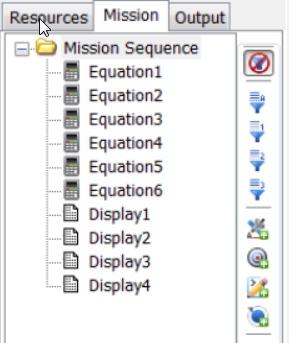
Press the Run button, then you will see the following text in the MessageWindow.
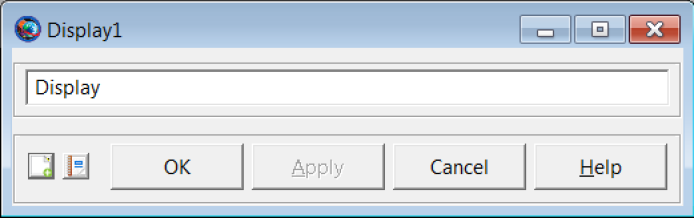
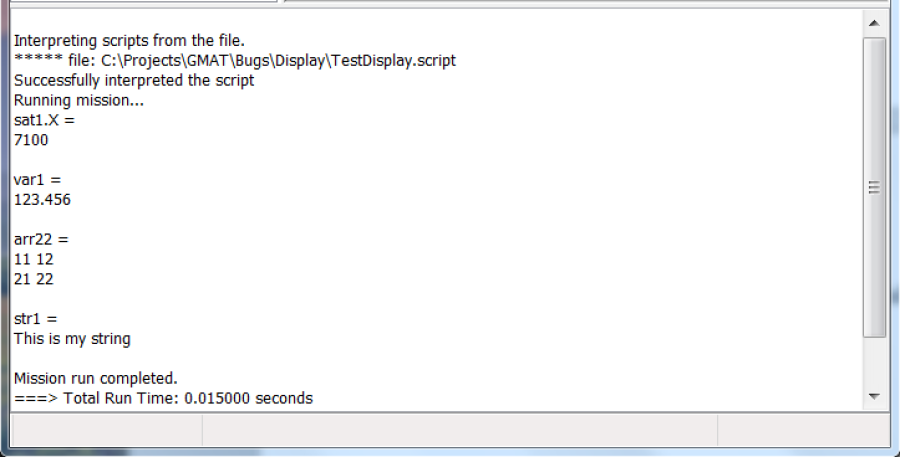 You can also add a new Display Command via the GUI. Append a Display Command to MissionSequence and double click on the new Display Command and you will see the following dialog opens. This dialog is the default dialog for the new Commands. If you want you can create a customized Command dialog and connect it to GMAT main menu item. See "How to Create GMAT Panels" for detail instructions.
Congratulations! You have created your first GMAT command.
Tutorial Sample Code
Display.hpp
//$Id$
//------------------------------------------------------------------------------
// Display
//------------------------------------------------------------------------------
// GMAT: General Mission Analysis Tool.
//
// Copyright (c) 2002-2014 United States Government as represented by the
// Administrator of The National Aeronautics and Space Administration.
// All Other Rights Reserved.
//
// Author: Linda Jun (NASA/GSFC)
// Created: 2014/10/16
//
// Developed jointly by NASA/GSFC and Thinking Systems, Inc. under contract
// number S-67573-G
//
/**
 * Class declaration for the Display command
 */
//------------------------------------------------------------------------------
#ifndef Display_hpp
#define Display_hpp

#include "GmatCommand.hpp"
#include "ElementWrapper.hpp"

/**
 * Command used to write data to Message Window.
 */
class GMAT_API Display : public GmatCommand
{
public:
   Display();
   virtual ~Display();
   Display(const Display& display);
   Display& operator=(const Display& display);

   // inherited from GmatCommand
   virtual bool Execute();
   virtual bool InterpretAction();
   virtual bool SetElementWrapper(ElementWrapper* toWrapper,
                                  const std::string &withName);
   virtual void ClearWrappers();

   // inherited from GmatBase
   virtual bool Initialize();
   virtual GmatBase* Clone(void) const;
   virtual bool RenameRefObject(const Gmat::ObjectType type,
                                const std::string &oldName,
                                const std::string &newName);
   virtual const StringArray&
           GetWrapperObjectNameArray(bool completeSet = false);

   // Parameter accessors
   virtual std::string GetParameterText(const Integer id) const;
   virtual Integer GetParameterID(const std::string &str) const;
   virtual Gmat::ParameterType
           GetParameterType(const Integer id) const;
   virtual std::string GetParameterTypeString(const Integer id) const;
   virtual std::string GetStringParameter(const Integer id) const;
   virtual std::string GetStringParameter(const std::string &label) const;
   virtual bool SetStringParameter(const Integer id,
                                   const std::string &value);
   virtual bool SetStringParameter(const std::string &label,
                                   const std::string &value);

   // for generating string
   virtual const std::string&
           GetGeneratingString(
              Gmat::WriteMode mode = Gmat::SCRIPTING,
              const std::string &prefix = "",
              const std::string &useName = "");
   DEFAULT_TO_NO_CLONES

protected:
   // Parameter IDs
   enum
   {
      PARAM_NAME = GmatCommandParamCount,
      DisplayParamCount
   };
   std::string paramName;
   ElementWrapper *paramWrapper;
   static const std::string
      PARAMETER_TEXT[DisplayParamCount - GmatCommandParamCount];
   static const Gmat::ParameterType
      PARAMETER_TYPE[DisplayParamCount - GmatCommandParamCount];
};
#endif // Display_hpp
Display.cpp
//$Id$
//------------------------------------------------------------------------------
// Display
//------------------------------------------------------------------------------
// GMAT: General Mission Analysis Tool.
//
// Copyright (c) 2002-2014 United States Government as represented by the
// Administrator of The National Aeronautics and Space Administration.
// All Other Rights Reserved.
//
// Author: Linda Jun (NASA/GSFC)
// Created: 2014/10/16
//
// Developed jointly by NASA/GSFC and Thinking Systems, Inc. under contract
// number S-67573-G
//
/**
 * Class implementation for the Display command
 */
//------------------------------------------------------------------------------
#include "Display.hpp"
#include "CommandException.hpp"
#include "StringUtil.hpp"       // for ToString()
#include "MessageInterface.hpp" // for ShowMessage()

//#define DEBUG_DISPLAY_IA
//#define DEBUG_DISPLAY_INIT
//#define DEBUG_DISPLAY_EXE

//---------------------------------
// static data
//---------------------------------
const std::string
Display::PARAMETER_TEXT[DisplayParamCount - GmatCommandParamCount] =
{
   "Parameter",
};
const Gmat::ParameterType
Display::PARAMETER_TYPE[DisplayParamCount - GmatCommandParamCount] =
{
   Gmat::OBJECT_TYPE, // "Parameter",
};

//------------------------------------------------------------------------------
// Display()
//------------------------------------------------------------------------------
/**
 * Constructs the Display command (default constructor).
 */
//------------------------------------------------------------------------------
Display::Display() :
GmatCommand("Display"),
paramWrapper(NULL)
{
   parameterCount = DisplayParamCount;
}

//------------------------------------------------------------------------------
// ~Display()
//------------------------------------------------------------------------------
/**
 * Destroys the Display command (default constructor).
 */
//------------------------------------------------------------------------------
Display::~Display()
{
}

//------------------------------------------------------------------------------
// Display(const Display& display)
//------------------------------------------------------------------------------
/**
 * Makes a copy of the Display command (copy constructor).
 *
 * @param display The original used to set parameters for this one.
 */
//------------------------------------------------------------------------------
Display::Display(const Display& display) :
   GmatCommand(display),
   paramName(display.paramName),
   paramWrapper(NULL)
{
}

//------------------------------------------------------------------------------
// Display& operator=(const Display& display)
//------------------------------------------------------------------------------
/**
 * Sets this Display to match another one (assignment operator).
 *
 * @param display The original used to set parameters for this one.
 *
 * @return this instance.
 */
//------------------------------------------------------------------------------
Display& Display::operator=(const Display& display)
{
   if (this != &display)
   {
      paramName = display.paramName;
      paramWrapper = NULL;
   }
  return *this;
}

//------------------------------------------------------------------------------
// bool Execute()
//------------------------------------------------------------------------------
/**
 * Executes the Display command
 *
 * @return true always.
 */
//------------------------------------------------------------------------------
bool Display::Execute()
{
   Gmat::WrapperDataType wrapperType = paramWrapper->GetWrapperType();
   std::string result = "Unknown";
   Integer precision = 16;
   bool zeroFill = false;
   switch (wrapperType)
   {
   case Gmat::VARIABLE_WT:
   case Gmat::ARRAY_ELEMENT_WT:
   case Gmat::OBJECT_PROPERTY_WT:
   {
      Real rval = paramWrapper->EvaluateReal();
      result = GmatStringUtil::ToString(rval, precision, zeroFill);
      break;
   }
   case Gmat::PARAMETER_WT:
   {
      Gmat::ParameterType dataType = paramWrapper->GetDataType();
      switch (dataType)
      {
         case Gmat::REAL_TYPE:
         {
            Real rval = paramWrapper->EvaluateReal();
            result = GmatStringUtil::ToString(rval, precision, zeroFill);
            break;
         }
         case Gmat::RMATRIX_TYPE:
         {
            Rmatrix rmat = paramWrapper->EvaluateArray();
            result = rmat.ToString();
            break;
         }
         case Gmat::RVECTOR_TYPE:
         {
            Rvector rvec = paramWrapper->EvaluateRvector();
            result = rvec.ToString();
            break;
         }
         case Gmat::STRING_TYPE:
         {
            result = paramWrapper->EvaluateString();
            break;
         }
         default:
            throw CommandException
               ("Display cannot write \"" + paramName + "\" due to unimplemented "
                "Parameter data type");
      }
      break;
   }
   case Gmat::ARRAY_WT:
   {
      Rmatrix rmat = paramWrapper->EvaluateArray();
      result = rmat.ToString(precision, 1, false, "", false);
      break;
   }
   case Gmat::STRING_OBJECT_WT:
   {
      result = paramWrapper->EvaluateString();
      break;
   }
   default:
      break;
   }

   MessageInterface::ShowMessage("%s = \n%s\n\n", paramName.c_str(), result.c_str());
   BuildCommandSummary(true);
   return true;
}

//------------------------------------------------------------------------------
// void InterpretAction()
//------------------------------------------------------------------------------
/**
 * Parses the command string and builds the corresponding command structures.
 *
 * The Display command has the following syntax:
 *
 * Display ParameterName
 */
//------------------------------------------------------------------------------
bool Display::InterpretAction()
{
   StringArray chunks = InterpretPreface();
   if (chunks.size() < 2)
      throw CommandException("Missing information for MissionSave command.\n");
   paramName = chunks[1];
   return true;
}

//------------------------------------------------------------------------------
// bool SetElementWrapper(ElementWrapper *toWrapper, const std::string &withName)
//------------------------------------------------------------------------------
/**
 * Sets an element wrapper for a given object name
 */
//------------------------------------------------------------------------------
bool Display::SetElementWrapper(ElementWrapper *toWrapper,
                                const std::string &withName)
{
   if (toWrapper == NULL)
      return false;
   bool retval = false;
   ElementWrapper *oldWrapper = paramWrapper;
   if (paramName == withName)
   {
      paramWrapper = toWrapper;
      retval = true;
   }
   if (oldWrapper)
      delete oldWrapper;
   return retval;
}

//------------------------------------------------------------------------------
// const StringArray& GetWrapperObjectNameArray(bool completeSet = false)
//------------------------------------------------------------------------------
const StringArray& Display::GetWrapperObjectNameArray(bool completeSet)
{
   wrapperObjectNames.clear();
   wrapperObjectNames.push_back(paramName);
   return wrapperObjectNames;
}

//------------------------------------------------------------------------------
// void ClearWrappers()
//------------------------------------------------------------------------------
/**
 * Clears wrappers and set to NULL.
 */
//------------------------------------------------------------------------------
void Display::ClearWrappers()
{
   ElementWrapper *wrapper = paramWrapper;
   paramWrapper = NULL;
   if (wrapper)
      delete wrapper;
}

//------------------------------------------------------------------------------
// bool Initialize()
//------------------------------------------------------------------------------
/**
 * Performs the initialization needed to run the Display command.
 *
 * @return true if the Display is initialized, false if an error occurs.
 */
//------------------------------------------------------------------------------
bool Display::Initialize()
{
   bool retval = true;
   if (GmatCommand::Initialize() == false)
      retval = false;
   if (retval)
   {
      // Set wrapper reference
      if (SetWrapperReferences(*paramWrapper) == false)
         retval = false;
   }
   return retval;
}

//------------------------------------------------------------------------------
// GmatBase* Clone(void) const
//------------------------------------------------------------------------------
/**
 * This method returns a clone of the Display.
 *
 * @return clone of the Display.
 */
//------------------------------------------------------------------------------
GmatBase* Display::Clone() const
{
   return (new Display(*this));
}

//------------------------------------------------------------------------------
// bool RenameRefObject(const Gmat::ObjectType type,
// const std::string &oldName, const std::string &newName)
//------------------------------------------------------------------------------
/**
 * @see GmatBase
 */
//------------------------------------------------------------------------------
bool Display::RenameRefObject(const Gmat::ObjectType type,
                              const std::string &oldName,
                              const std::string &newName)
{
   // Change Parameter name
   if (paramName.find(oldName) != oldName.npos)
   {
      paramName = GmatStringUtil::ReplaceName(paramName, oldName, newName);
   }
   // Go through wrapper
   std::string desc = paramWrapper->GetDescription();
   if (desc.find(oldName) != oldName.npos)
   {
      paramWrapper->RenameObject(oldName, newName);
   }
   // Go through generating string
   generatingString = GmatStringUtil::ReplaceName(generatingString, oldName, newName);
   return true;
}

//------------------------------------------------------------------------------
// std::string GetParameterText(const Integer id) const
//------------------------------------------------------------------------------
std::string Display::GetParameterText(const Integer id) const
{
   if (id >= GmatCommandParamCount && id < DisplayParamCount)
      return PARAMETER_TEXT[id - GmatCommandParamCount];
   else
      return GmatCommand::GetParameterText(id);
}

//------------------------------------------------------------------------------
// Integer GetParameterID(const std::string &str) const
//------------------------------------------------------------------------------
Integer Display::GetParameterID(const std::string &str) const
{
   for (int i=GmatCommandParamCount; i<DisplayParamCount; i++)
   {
      if (str == PARAMETER_TEXT[i - GmatCommandParamCount])
         return i;
   }
   return GmatCommand::GetParameterID(str);
}

//------------------------------------------------------------------------------
// Gmat::ParameterType GetParameterType(const Integer id) const
//------------------------------------------------------------------------------
Gmat::ParameterType Display::GetParameterType(const Integer id) const
{
   if (id >= GmatCommandParamCount && id < DisplayParamCount)
      return PARAMETER_TYPE[id - GmatCommandParamCount];
   else
      return GmatCommand::GetParameterType(id);
}

//------------------------------------------------------------------------------
// std::string GetParameterTypeString(const Integer id) const
//------------------------------------------------------------------------------
std::string Display::GetParameterTypeString(const Integer id) const
{
   if (id >= GmatCommandParamCount && id < DisplayParamCount)
      return GmatBase::PARAM_TYPE_STRING[GetParameterType(id)];
   else
      return GmatCommand::GetParameterTypeString(id);
}

//------------------------------------------------------------------------------
// std::string GetStringParameter(const Integer id) const
//------------------------------------------------------------------------------
std::string Display::GetStringParameter(const Integer id) const
{
   switch (id)
   {
   case PARAM_NAME:
      return paramName;
   default:
      return GmatCommand::GetStringParameter(id);
   }
}

//------------------------------------------------------------------------------
// std::string GetStringParameter(const std::string &label) const
//------------------------------------------------------------------------------
std::string Display::GetStringParameter(const std::string &label) const
{
   return GetStringParameter(GetParameterID(label));
}

//------------------------------------------------------------------------------
// bool SetStringParameter(const Integer id, const std::string value)
//------------------------------------------------------------------------------
bool Display::SetStringParameter(const Integer id, const std::string &value)
{
   switch (id)
   {
   case PARAM_NAME:
      paramName = value;
      return true;
   default:
      return GmatCommand::SetStringParameter(id, value);
   }
}

//------------------------------------------------------------------------------
// bool SetStringParameter(const std::string &label, const std::string &value)
//------------------------------------------------------------------------------
bool Display::SetStringParameter(const std::string &label, const std::string &value)
{
   return SetStringParameter(GetParameterID(label), value);
}

//------------------------------------------------------------------------------
// const std::string& GetGeneratingString(Gmat::WriteMode mode = Gmat::SCRIPTING,
// const std::string &prefix = "",
// const std::string &useName = "");
//------------------------------------------------------------------------------
const std::string& Display::GetGeneratingString(Gmat::WriteMode mode,
                                                const std::string &prefix,
                                                const std::string &useName)
{
   // Build the local string
   generatingString = prefix + "Display ";
   generatingString += paramName;

   // Then call the base class method for comments
   return GmatCommand::GetGeneratingString(mode, prefix, useName);
}